1 Your Second Brain in Markdown: The Perfect Library for Your AI
A folder of plain Markdown files, synced across devices and readable by any AI assistant: how a personal "Brain" – built for example with Obsidian – becomes a knowledge base that Claude and other tools can search, cite and extend.
Most of us have the same problem. Hundreds of PDFs – textbooks, standards, papers, market studies – sit in download folders. Notes live in Word files, note apps and e-mails. And when we want an AI assistant to help, we upload the same files again and again. We hit size limits, and after every chat the context is gone.
There is a simpler way: one folder of plain text files – a “Brain” – that you, all your devices and your AI assistant can read. Picture a product launch. Your assistant searches a converted 500-page marketing textbook for “price elasticity”, finds the three relevant sections in seconds and quotes them in the launch plan it writes for you. No upload, no copy-paste, and the result lands right next to your other project files.
This article is the first in a series about the practical use of AI. It explains:
- what such a Brain is;
- why Markdown is the ideal format for it;
- how to sync it across devices;
- how to turn PDFs into Markdown;
- how an assistant like Claude Cowork works with it.
What a “Brain” Is
A Brain is nothing more than a normal folder of Markdown files on your disk. A note-taking app sits on top as editor and viewer. In this article I use Obsidian as the example – there it is called a vault. Other tools work the same way, for instance Logseq, Joplin, or simply a folder of Markdown files edited in VS Code. The concept matters, not the product.
The key property is local-first. The files belong to you and stay readable without any app – today and in twenty years. Typical editors add a few comfortable features on top:
- links between notes, with backlinks;
- a graph of linked notes;
- full-text search;
- templates.
A link to another note is just text:
The pricing assumptions are explained in [[Price elasticity]].A structure that works
The structure that has proven useful is simple: separate Knowledge (stable reference material) from Projects (work in progress), and use the same topic folders on both sides. Here is a fictional example:
Brain/
├── Knowledge/              stable reference library
│   ├── Finance/            accounting standards, a corporate-finance textbook
│   ├── Science/            papers and handbooks, converted from PDF
│   ├── Marketing/          market studies, a marketing textbook
│   └── Advertisement/      brand and campaign guidelines, media data
└── Projects/               active work: briefings, drafts, status notes
    ├── Finance/            e.g. budget planning 2027
    ├── Science/            e.g. literature review
    ├── Marketing/          e.g. product launch plan
    └── Advertisement/      e.g. spring campaign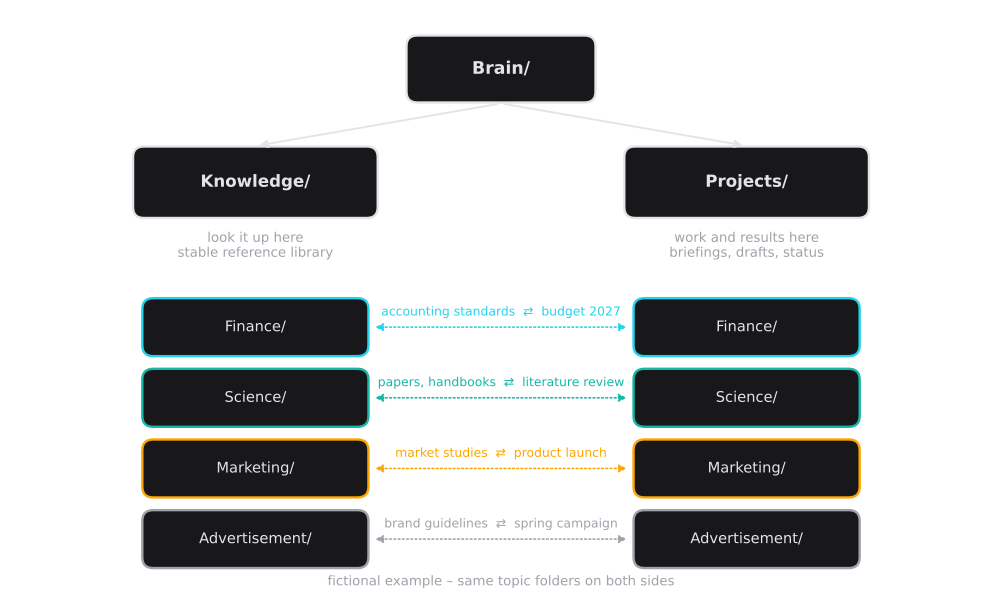
The mirrored structure pays off as soon as an AI works with it. The assistant always knows where to look something up (Knowledge/Marketing) and where to put the result (Projects/Marketing).
One optional tip: a short context note at the top level. It tells every AI who you are and how you like answers – your role, preferred formats and level of detail.
Why Markdown
Markdown is plain text with a handful of symbols for structure:
#for headings,-for lists,**bold**;- tables and code blocks;
$…$for formulas.
The file stays perfectly readable as text, and any editor can display it nicely.
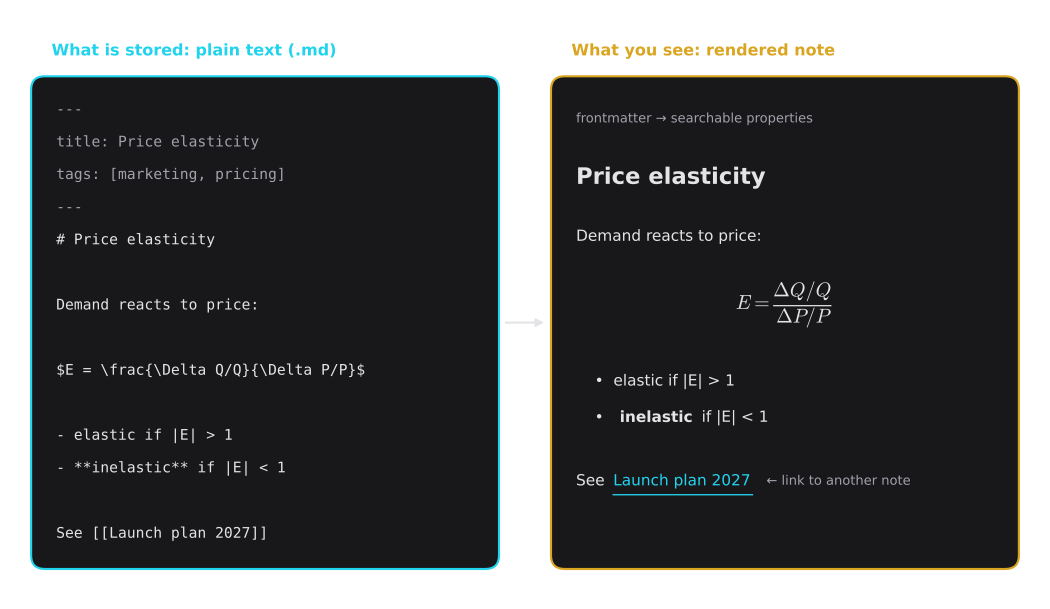
The block between the --- lines at the top is called frontmatter. It holds properties such as title and tags, which both you and the AI can search.
Compared with the usual alternatives, Markdown wins on almost every point that matters for working with AI:
| Criterion | Word file | Proprietary note app | Markdown | |
|---|---|---|---|---|
| Readable without special software | ◐ | ○ | ○ | ● |
| Clean input for an AI (no layout noise) | ○ | ◐ | ◐ | ● |
| Searchable with any tool | ◐ | ◐ | ○ | ● |
| Line-by-line version history (e.g. Git) | ○ | ○ | ○ | ● |
| Portable to other tools and formats | ○ | ◐ | ○ | ● |
| Keeps the exact page layout | ● | ● | ◐ | ○ |
● good, ◐ partly, ○ poor
A few points deserve a sentence each:
- Language models read and write Markdown natively. Headings give them structure; there is no page layout, no columns and no headers and footers to confuse them.
- The same files work everywhere. You can use them in a note app, in a code editor, in a static website generator – the articles on this website are Markdown files – or convert them to Word and PDF with standard tools.
- The honest limitation: exact page appearance is lost. That is why the original PDF stays in your archive and the Markdown file becomes the working copy.
Sync Across Devices
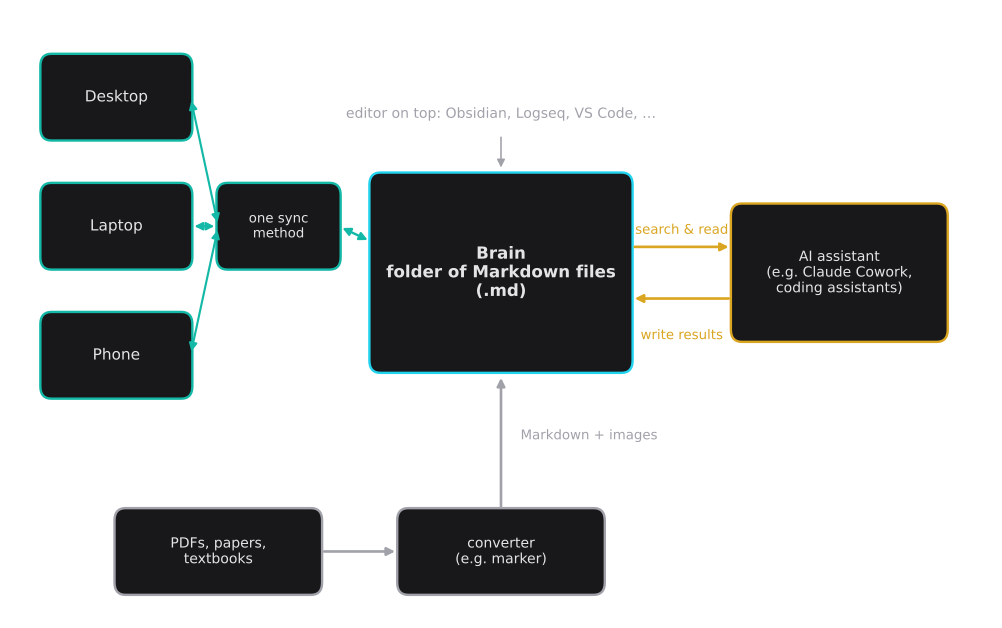
Because the Brain is just a folder, any file synchronization works. Your desktop, laptop and phone all see the same notes.
| Sync method | Platforms | Things to know |
|---|---|---|
| Built-in sync of the note app (where offered) | usually all platforms | check encryption and version history |
| iCloud | macOS, iOS | not recommended on Windows (risk of duplicates or corruption) |
| OneDrive | Windows, macOS | limited on Android and iOS; keep the folder “always on this device” |
| Google Drive | Windows, macOS, Android | limited support on iOS |
| Syncthing | Windows, macOS, Linux, Android (community app) | peer-to-peer, no cloud storage |
| Git | Windows, macOS, Linux | manual push and pull, full history |
One rule is critical: use exactly one sync method. Two services syncing the same folder – for example a note app’s own sync plus a cloud drive – sooner or later produce conflicts. Then an older version of a file can silently overwrite a newer one. After large automated edits, for example by an AI, it is worth checking that the sync finished cleanly.
From PDF to Markdown
AI assistants can read PDFs, but this approach has limits:
- Large books exceed upload and context limits.
- Every new question starts from scratch.
- Equations and tables are often garbled.
The better approach is to convert once and reuse forever. One open-source tool for this is marker. It converts PDFs (and images, presentations, Word files, HTML and e-books) into Markdown, JSON or HTML. For technical documents, these features matter most:
- layout detection – columns, headers and footers are handled;
- OCR for scanned pages;
- tables become Markdown tables;
- equations become LaTeX;
- images are extracted as separate files;
- an optional mode (
--use_llm) uses a language model for higher accuracy.
Using it takes two commands:
pip install marker-pdf

# one book
marker_single "marketing_textbook.pdf" --output_dir Brain/Knowledge/Marketing

# a whole folder of PDFs
marker Brain/Knowledge/Science/pdf_inbox --output_dir Brain/Knowledge/Science
What comes out? As a typical order of magnitude, a textbook of about 500 pages becomes:
- one Markdown file of roughly 2 MB of text, with headings, tables and LaTeX formulas;
- a few hundred images, the figures of the book;
- one metadata file with page layout and headings.
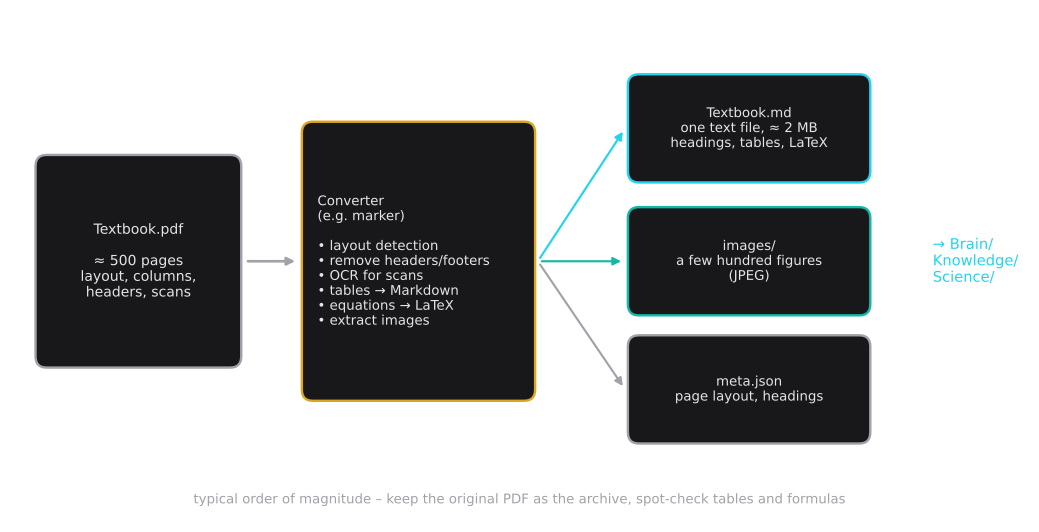
A few practical notes:
- Hardware. A graphics card speeds things up considerably; on a GPU, the project reports roughly 3 pages per second in balanced mode and about 7 in fast mode. Ordinary CPUs work too, just more slowly.
- Quality check. Spot-check tables and formulas – OCR errors happen. Keep the PDF.
- License. The code is open source (Apache 2.0). The underlying models are free for research, personal use and small companies (under $5M funding or revenue); larger commercial use requires a license.
- Copyright. Convert only documents you own or are licensed to use. Keep the converted books in your private Brain and never publish them.
How an AI Works With the Brain
The principle is simple: instead of uploading copies, you give the AI access to the folder. A good assistant does not read a whole book for every question – it searches first and then reads only the relevant passages.
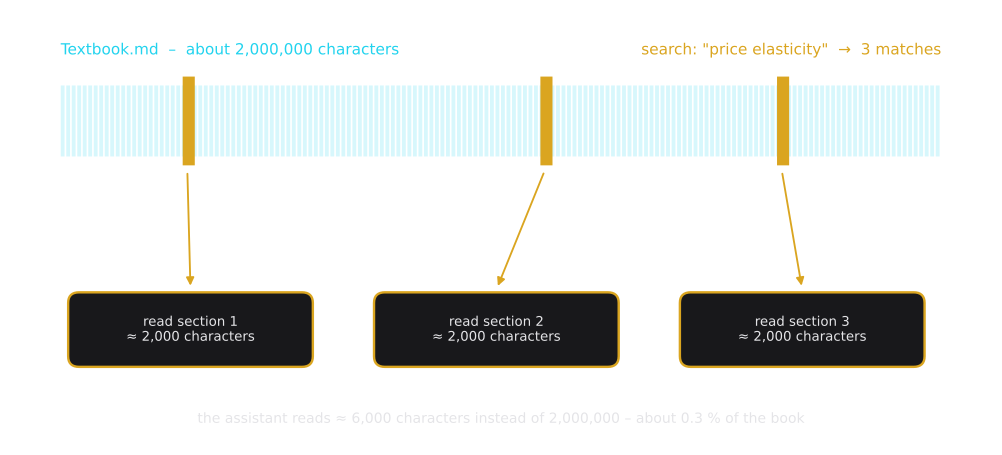
That is why a 2 MB book is no problem. The assistant reads a few thousand characters instead of two million.
Example: Claude Cowork
In Claude Cowork, which runs in the Claude desktop app, you choose a folder on your computer. Cowork then gets read and write access to it: it can open, edit and create files there. A project bundles everything the assistant needs for a recurring kind of work:
- Instructions – for example: “Reference material is in
Brain/Knowledge/Marketing. Save drafts toBrain/Projects/Marketing. Use our house style.” - Context – files, a local folder or links.
- Project memory – Claude remembers context from earlier tasks within the same project.
Two safety rules are built in or recommended:
- Cowork asks before permanently deleting a file.
- You should connect only the folders a project actually needs.
A session in five steps
Here is how a fictional product launch runs through the Brain:
- The project instructions name the paths and the house style.
- The assistant reads the briefing in
Projects/Marketing. - It searches the knowledge: market studies and the converted textbook in
Knowledge/Marketing, the brand guidelines inKnowledge/Advertisement. - It writes the results: the launch plan into
Projects/Marketing, a campaign brief intoProjects/Advertisement. - The next session – on any device – starts from the same Brain, including what the assistant wrote last time.
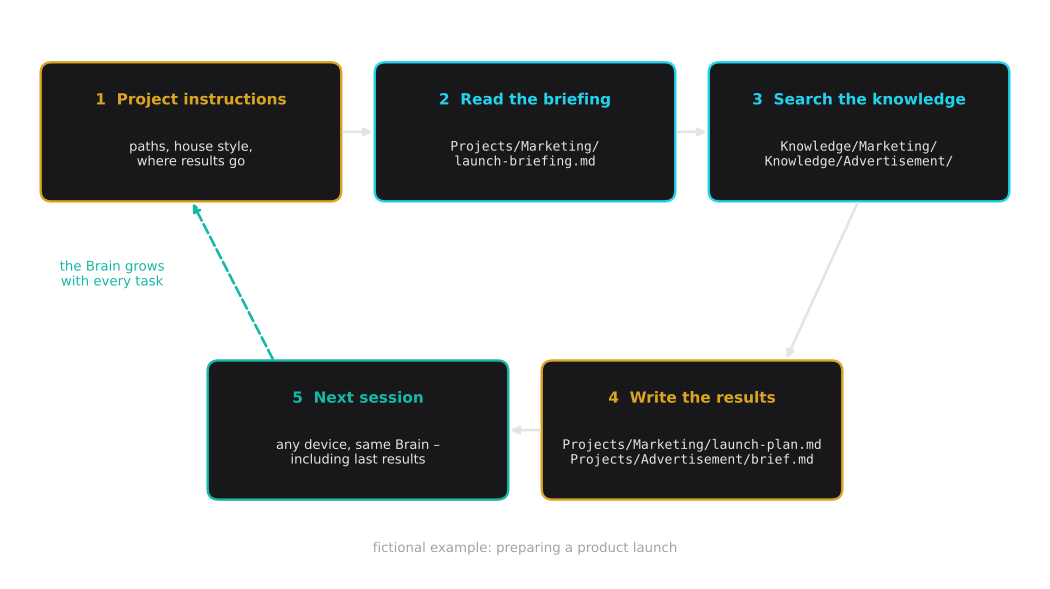
This is the real gain. The Brain grows with every task. Briefings, drafts and results accumulate in a structure that you and the AI both understand.
Other assistants
Nothing here is tied to one product. The same folder works with:
- Coding assistants opened in the Brain folder – they read and write files anyway (for example Claude Code or Cursor);
- Assistants that can access files through the Model Context Protocol (MCP), an open standard for connecting AI tools to data sources;
- Chat-only tools – upload single Markdown files instead of PDFs; they are smaller and cleaner.
Your knowledge stays in plain files. Switch assistants, keep your Brain.
Brain or RAG?
You may have heard of RAG (retrieval-augmented generation). A RAG system cuts documents into chunks and indexes them, often as numerical embeddings in a vector database. With every question, it hands the most relevant chunks to the language model.
A Markdown Brain plus an assistant that can search files is the simple, do-it-yourself version of the same idea: retrieval by file and text search, generation by the assistant.
The two are not rivals. A formal RAG pipeline can later index the very same Markdown files – and clean Markdown is the best input for both.
A word on privacy
When an AI reads a note, its content is processed by the AI provider. Keep confidential material – company documents, personal data – in folders that are not connected, and follow your organization’s rules.
Getting Started
- Choose a Markdown editor (Obsidian is one example) and create the Brain folder.
- Create the basic structure:
KnowledgeandProjects, each with the same topic folders. - Optionally write a short context note: your role, tools and answer preferences.
- Choose exactly one sync method.
- Convert your five most-used PDFs and spot-check tables and formulas.
- Connect the Brain (or one topic folder) to your AI assistant, and create a project whose instructions name the paths.
- Let the AI save its results back into the Brain – so it grows with every task.
Key Takeaways
- A Brain is simply a folder of Markdown files. The note app on top – Obsidian or any alternative – is interchangeable; your knowledge is not locked in.
- Markdown is readable for humans and machines, searchable, versionable and portable – the ideal input for AI assistants.
- Separate Knowledge from Projects and mirror the topic folders, so the AI knows where to look and where to write.
- Convert PDFs once (for example with marker) and keep the original as the archive; the result is one searchable text file per book, with tables and LaTeX formulas.
- Give the AI folder access instead of uploads. It searches first and reads only what matters, and every task makes the Brain more valuable.
Key Terms
- Brain / vault: a folder of Markdown notes used as a personal knowledge base.
- Markdown: plain-text format with simple symbols for headings, lists, tables, links and formulas.
- Frontmatter: the properties block (title, tags, …) at the top of a Markdown file.
- Local-first: the files live on your own device and remain usable without any particular app.
- OCR: optical character recognition – turning scanned page images into text.
- RAG: retrieval-augmented generation – retrieving relevant text passages and handing them to a language model.
- MCP: Model Context Protocol – an open standard for connecting AI assistants to tools and data sources.
Coming Up Next
This series will continue with more on the practical use of AI and on software development with AI assistants.
References
- Obsidian Help: Sync your notes across devices
- marker: README on GitHub
- Claude Help Center: Organize your tasks with projects in Claude Cowork
- Claude Academy: Setting up Claude Cowork